Best Embroidery Machine Buying Guide — Black Friday Deals 2026
Choosing an embroidery machine starts with the work you want it to do: add a small motif to a personal project, combine sewing and embroidery, or stitch larger designs across varied items. This guide compares three distinct configurations, from the Brother SE700’s sewing-and-embroidery combination to the Smartstitch S-1001’s large embroidery area. For Black Friday, treat each listing as an offer to verify, not a reason to change your project plan. Check that the exact model and included configuration match what you intend to buy, then weigh the relevant design area, machine role and file-transfer options. The right choice is the one whose stated features fit the sequence of tasks you expect to perform.
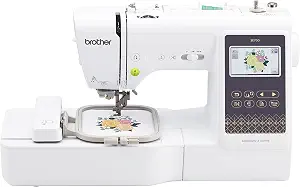
Brother SE700 Sewing and Embroidery Machine (ASIN B0B8DYP1RN)
Best Budget: Brother SE700 Sewing and Embroidery Machine is the combination choice in this guide, with features for both sewing and embroidery. It has 103 built-in sewing stitches, including 10 styles of one step auto-size buttonholes, alongside 135 built-in embroidery designs and 10 embroidery lettering fonts. This mix can suit a project sequence that includes ordinary sewing tasks as well as adding embroidery, rather than buying an embroidery-only machine for the stitching part. Its embroidery field is 4″ x 4″, so compare that exact area with the size and placement of the designs you have in mind.
The SE700 has a 3.7-inch LCD color touchscreen. It also includes 8 sewing feet, a detail to check against the sewing tasks you expect to do and the contents of the exact listing. For embroidery file transfer, the stated method is to transmit files from a PC through the free downloadable Design Database Transfer software. If your plan relies on getting designs onto the machine, make sure that PC-based route fits your setup and workflow before deciding.
The combination of sewing stitches, buttonhole styles, built-in embroidery designs and lettering fonts makes the SE700’s stated capabilities easy to compare with a mixed-use checklist. For example, someone planning to sew an item and then add a compact embroidered element can consider both its sewing role and 4″ x 4″ field. That example is a planning prompt, not a guarantee that any particular project or design will fit; check the design’s dimensions and intended placement.
For Black Friday, Best Budget is an editorial label among the featured products, not a promise about the sale price or a market-wide value ranking. Compare the exact offer for the SE700 and verify that the listing identifies this model. Then decide whether combining sewing and embroidery is more useful for your plans than selecting a machine dedicated to embroidery. If the 4″ x 4″ field is appropriate for your intended designs and the listed transfer method suits your process, the SE700 is a practical candidate to compare. Do not assume a banner or headline tells you what is included: check the specific offer and configuration.
Key specs
Embroidery designs
135 built-in designs and 10 embroidery lettering fonts
Sewing stitches
103 built-in sewing stitches including 10 styles of one step auto-size buttonholes
Embroidery field
4″ x 4″ embroidery field
Touchscreen
3.7-inch LCD color touchscreen
Wireless transfer
Transmit embroidery files from your PC to your embroidery sewing machine via the free downloadable software Design Database Transfer(1)
Included feet
8 sewing feet
Brother PE900 Wireless Embroidery Machine with WLAN
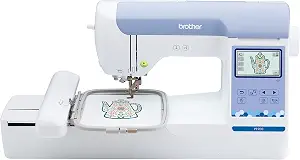
Brother PE900 Wireless Embroidery Machine with WLAN (ASIN B0B8337QHR)
Best Overall: Brother PE900 Wireless Embroidery Machine with WLAN is a focused option for someone whose purchase is centered on embroidery rather than general sewing. It is an embroidery-only machine and does not function as a traditional sewing machine, so consider whether another machine or a separate sewing plan will cover sewing tasks. Its maximum embroidery area is 5” x 7”, a useful figure to compare with the dimensions and placement of designs you expect to stitch. The area can help you decide whether the PE900 aligns with your intended projects, but the design itself still needs to fit the available space.
The PE900 includes 193 built-in embroidery designs and 13 lettering fonts: 9 English, 3 Japanese, and 1 Cyrillic. That combination may be relevant if you want to choose from built-in motifs or add lettering using one of the listed font options. The 3.7-inch LCD display provides an on-machine display, while the machine also supports ways to move embroidery files from a PC. You can use the free downloadable Design Database Transfer software or connect through the built-in USB port. Consider which transfer route fits the computer-based steps you expect to use before choosing.
The listed mobile app features add another design path: access 50 free embroidery designs, make custom patterns by drawing on a mobile device, or download patterns from the collection and transfer them wirelessly to the PE900. Those are stated app options to weigh if drawing or transferring from a mobile device is part of your intended workflow. They do not remove the need to check whether a particular design suits the project and machine’s available area.
For Black Friday, the Best Overall label is an editorial fit among these three machines, not a claim of measured superiority. Compare the exact PE900 offer with your checklist: embroidery-only role, 5” x 7” maximum area, the included design and font selection, and the transfer options you are likely to use. Confirm the listing is for the PE900 rather than relying on a broad product title or promotion banner. If embroidery is the main task and sewing is not part of this purchase, the stated configuration gives you a clear basis for deciding whether it belongs on your shortlist.
Key specs
Machine type
The PE900 is an embroidery-only machine and does not function as a traditional sewing machine
Embroidery area
5” x 7” maximum embroidery area
Wireless transfer
Transmit embroidery files from your PC to your embroidery machine via the free downloadable software Design Database Transfer(1), or connect via the built-in USB port
Built-in designs
193 built-in embroidery designs
Lettering fonts
13 lettering fonts (9 English, 3 Japanese, and 1 Cyrillic)
Display
3.7-inch LCD display
Mobile app
Access 50 free embroidery designs, make custom embroidery patterns by drawing on your mobile device, or download patterns from the collection and transfer them to your PE900 wirelessly
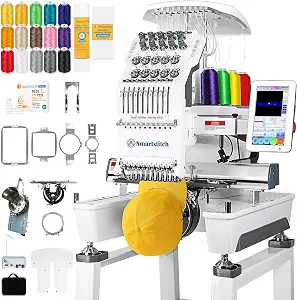
Best for Larger Embroidery Projects: Smartstitch S-1001 Upgraded Embroidery Machine stands out in this group for its listed 9.5″x14.2″ embroidery area. If your plans include designs that need a larger work area, compare their actual dimensions and placement with that figure before shortlisting the machine. The S-1001 is also listed with 10 needles and a maximum speed of 1200SPM. These specifications help describe its configuration; they are not a promise about the result or time for an individual project.
The S-1001 has a 7″ touch screen and listed automatic thread trimming and automatic color changing. It also has thread break detection. When planning a multi-step design, consider whether those stated functions correspond to the tasks you want the machine to handle. They are features to assess against your workflow, rather than a reason to overlook design size, file preparation or material requirements.
For file transfer, the machine is described as accepting DST/DSB files from a computer using USB/WiFi. Check that the files you plan to use follow the listed formats and that the transfer route fits your setup. The stated material list includes denim, canvas, leather, vinyl, caps, shoes and bags. If you have one of those items in mind, use the listing as a starting point and confirm the specific project requirements before purchasing; the material examples alone do not establish that every design or item will be suitable.
For Black Friday, the Best for Larger Embroidery Projects label reflects the S-1001’s stated work area among these featured options. It is not a guarantee of superior results or a claim about every project. Compare the exact model and offer, then review the area, file formats, transfer options and functions you would actually use. A larger listed area may be a relevant selection factor when your intended design calls for it, while a smaller motif may not need that particular feature. Let your planned item and design guide the decision rather than choosing from a promotion headline alone.
Key specs
Needles
10 Needles
Max speed
1200SPM Max Speed
Touch screen
7″ Touch Screen
Embroidery area
9.5″x14.2″ Embroidery Area
Automatic functions
Auto thread trimming; Auto color changing
Thread detection
Thread break detection
Compatible file transfer
DST/DSB files from your computer to the machine with the USB/WiFi
Materials
can stitch on denim, canvas, leather, vinyl, caps, shoes, bags
Turn a finished item into a useful shortlist
Start with a specific item you want to embroider and the place on it where the design should go. A small decoration on a planned project calls for a different area check than a design that spans a larger section. Write down the design’s dimensions and intended placement, then compare them with the machine’s stated embroidery area: the SE700’s 4″ x 4″ field, the PE900’s 5” x 7” maximum area, or the S-1001’s 9.5″x14.2″ area. The measurements are listed in their original formats here; use the exact product listing when comparing them with your design.
Next, consider what else the project sequence involves. If you expect to sew and embroider as part of the same set of tasks, the SE700 is the combination model in this selection. If embroidery is the core task and sewing is not part of the purchase, the PE900 is explicitly embroidery-only. The S-1001 has the largest stated area among these featured machines, which may make its area a deciding point when your intended design needs more room. None of those choices is automatically right for every project.
During Black Friday, use the project as your filter before looking at the offer. A promotion can draw attention to a machine whose configuration does not match your plan. Keep a short checklist of machine role, area and design placement, then compare the exact model in the offer. That approach keeps a tempting headline from substituting for a fit decision.
Build your design workflow from the available routes
A built-in design library is only one part of choosing a machine. The SE700 lists 135 built-in embroidery designs and 10 embroidery lettering fonts. The PE900 lists 193 built-in designs and 13 lettering fonts, with the font languages specified as 9 English, 3 Japanese and 1 Cyrillic. If you expect to begin with a built-in motif or lettering, compare those stated options with the sort of design you want. Do not treat a larger count as proof that a particular design is included; check the listing details for the selection that matters to you.
Then trace how a design would reach the machine. The SE700 supports transfer from a PC through free downloadable Design Database Transfer software. The PE900 offers that software route and a built-in USB port, and its listed mobile app features include accessing 50 free designs, drawing custom patterns on a mobile device, and transferring downloaded patterns wirelessly. The S-1001 is listed as accepting DST/DSB files from a computer via USB/WiFi. These are different stated routes, so identify the one that fits the devices and file steps you plan to use.
For a Black Friday comparison, focus on your likely workflow rather than collecting features you may not need. If you already have a design source in mind, check its file type and transfer path against the product information. If you plan to use built-in options, compare the design and font details. Choose based on a workable route from selecting or creating a design to transferring it—not on an assumption that every machine handles every file or app in the same way.
Decide how much of the job is sewing
Machine role is a basic decision that can narrow the choices quickly. The Brother SE700 combines sewing and embroidery and lists 103 built-in sewing stitches, including 10 styles of one step auto-size buttonholes. It also lists 135 embroidery designs and 10 embroidery lettering fonts. Those facts make it the option here to examine when one purchase needs to address both sewing tasks and embroidery. Consider whether that combination matches your planned sequence, rather than treating the stitch count as a measure of how well it will suit every sewing project.
The Brother PE900 has a different role: it is an embroidery-only machine and does not function as a traditional sewing machine. That distinction matters if the item you want to personalize still needs to be made or altered. Plan whether those sewing steps are already covered outside this purchase. The Smartstitch S-1001 is presented as an embroidery machine, with no sewing function specified in the available details; avoid assuming extra capabilities from the product name or other listing language.
Black Friday can make several configurations appear equally appealing, but the machine’s role should remain part of your comparison. Check the exact model and decide whether your intended purchase is for sewing plus embroidery or for embroidery work. That simple distinction helps prevent a feature that is useful in one project sequence from distracting from a missing piece in another. If sewing matters to your plan, give the SE700’s stated combination a closer look; if not, compare the embroidery-focused choices on the other criteria that matter.
Put optional convenience features in context
Some listed features relate to interaction or workflow rather than the main question of what you plan to stitch. The SE700 has a 3.7-inch LCD color touchscreen, and the PE900 has a 3.7-inch LCD display. The S-1001 lists a 7″ touch screen. Compare these display specifications if screen size is important to your selection, but keep them in proportion to the machine role, work area and design route you need.
The S-1001 also lists automatic thread trimming, automatic color changing and thread break detection, along with 10 needles and a maximum speed of 1200SPM. These details may be useful to include in your task checklist if they relate to the way you expect to work. The PE900’s mobile app options may matter if you want to draw patterns on a mobile device or transfer designs wirelessly. The SE700’s listed 8 sewing feet may be worth checking if your intended sewing tasks make them relevant. Each feature is a possible preference, not a universal requirement.
While comparing Black Friday offers, separate features you will use from those that are merely attractive on a list. Decide which steps feel central: selecting designs, transferring files, stitching a larger area, or combining sewing with embroidery. Then check the model’s stated features against those steps. This gives optional conveniences a fair place in the decision without allowing them to obscure whether the machine suits the project itself.
Read the Black Friday listing as a specific configuration
A sale headline does not answer whether the offer is for the machine you meant to compare. Check the product name and model identifier on the exact listing, then match it to your shortlist: Brother SE700, Brother PE900, or Smartstitch S-1001. Review the stated machine role and the feature that led you to consider it. This guide does not establish any live promotion, discount, price, stock status or included bundle, so use the current offer details for those particulars rather than assuming them.
For the SE700, check that the listing corresponds to the sewing-and-embroidery model and review its stated field, design library and PC transfer method. For the PE900, verify the embroidery-only role, maximum area and transfer choices. For the S-1001, check the stated area, file formats and functions against your project requirements. Compare like with like: a headline may emphasize one feature, while your checklist may depend on a different one.
During Black Friday, take a moment to confirm any configuration details presented with the offer, including what the exact listing says is included. Avoid inferring a price advantage or package contents from promotional language alone. A useful decision is not simply the most eye-catching offer; it is the specific offer that corresponds to a machine and feature set suited to your planned work. If a listing leaves a detail unclear, do not fill the gap with an assumption.
Make your Black Friday choice
A sound embroidery machine choice begins with the item, design and workflow you want to complete. Compare the stated work areas with your intended placement, decide whether sewing belongs in the purchase, and check that the design-transfer route suits your plan. The SE700 offers a sewing-and-embroidery configuration, the PE900 is embroidery-only, and the S-1001 lists a 9.5″x14.2″ area along with specific file formats and workflow functions. For Black Friday, verify the exact model and offer details against those priorities instead of relying on a banner. Choose the configuration that fits the tasks you actually expect to do.